The AI Summit London 2026
Helpful Links & Resources
Please contact the following for:
- Staff Registration/Access, Deliverables, Leads
- Swapcard Technical Issues
- Visit Support at, https://help-attendees.swapcard.com/en/
Accessing the Event Platform Desktop Site
HOW TO | LOG IN FOR THE FIRST TIME
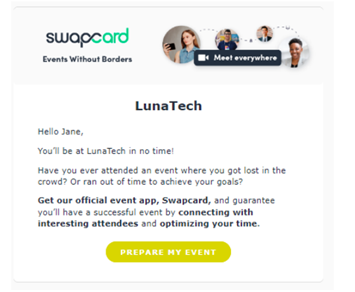
• You’ll receive an email similar to this one branded with your event that includes a button directing to a login page. Your account is automatically pre-created by our event team through exhibitor registration in the Exhibitor Portal.
• This email will come from (coming soon), so be sure to whitelist it!
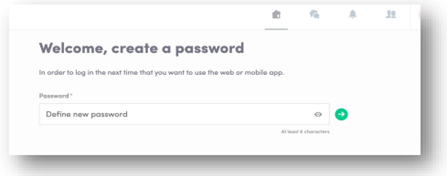
• A window will then ask that you create a password for your account. If you already have an account, it will take you to the event home page
Accessing the Event Platform Mobile App
HOW TO | DOWNLOAD THE APP
2 ways to get the App on your phone:
• Search “Connect Tech Events” in the App Store or the Play Store
• Visit https://page.swapcard.com/app/london-tech-week/ 

• Be sure to turn on notifications to know when attendees are reaching out to you in real-time. For IOS, you can manage notifications within the app settings. For Android, you can manage the notifications on the phone settings within notifications settings.
_____________________________________________________________________________________________________________________________________
The Attendee Experience:
HOW ATTENDEES WILL ENGAGE WITH YOU…AND VICE VERSA
Your Company Profile Page
Attendees can:
• Bookmark your company
• Chat “live” with booth staff
• Book a meeting with your company
• Learn about your products and services
• Access your marketing materials such as white papers, case studies, research, spec sheets, etc.
• View and register for sessions you may be hosting
• View and connect directly with your team members
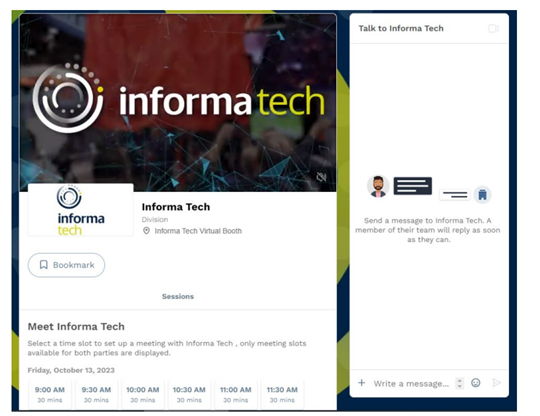
- Content from this page feeds into other areas of the event so attendees can learn about your company outside of your profile page
Connecting with you
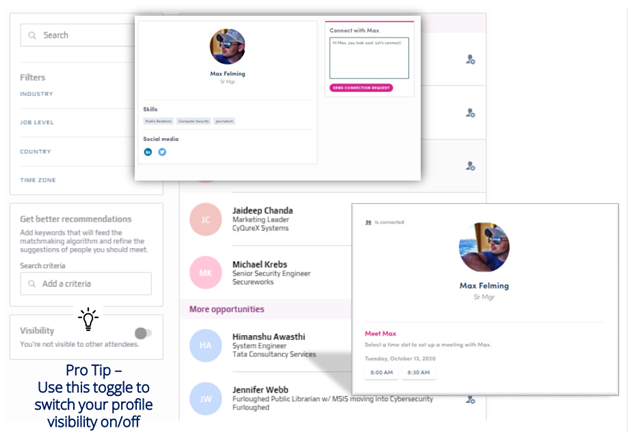
Attendees can:
• View visible attendees
• View profiles
• Make a connection
• Schedule a 1:1 meeting
Our AI -fueled platform will:
• Suggest people you should meet based on your profile
• Allow you to filter the list by key criteria
• Refine suggestions of people you should meet when you add keywords to your profile, feeding the matchmaking algorithm
Search By:
• Keyword
Filter By:
• Job Level
• Job Function
• Company Industry
_____________________________________________________________________________________________________________________________________
The Sponsor Experience:
HOW TO CONNECT WITH ATTENDEES AND BOOK/HOST MEETINGS IN SWAPCARD
Lead Scanning
HOW TO | LEAD SCAN ONSITE
• Open the app on your device
• Click on the QR code icon on the bottom menu bar.
• Scan the QR Code on the attendee badge.
• Test the lead scan with the sample badge to the right.
See the full Onsite Lead Scanning Guide Here
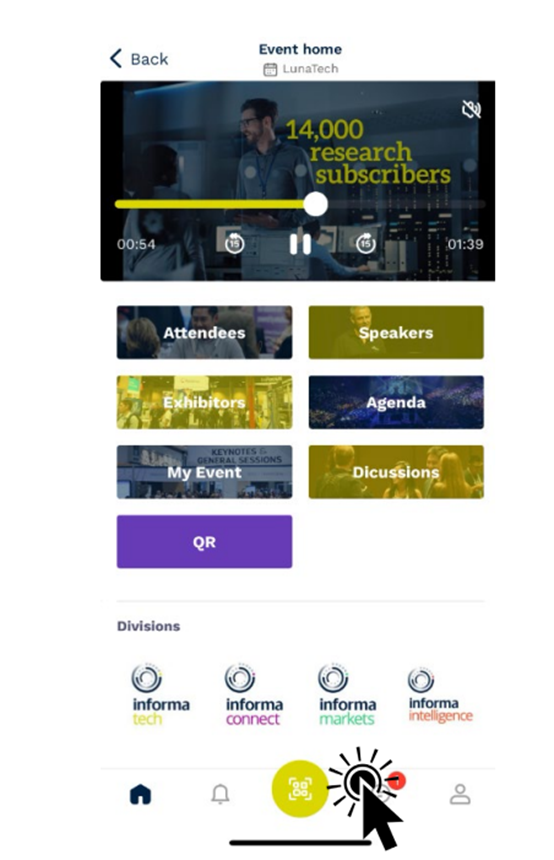
Scan the sample QR code below to test your badge scanning functionality within the London Tech Week app
Connection Requests
HOW TO | MAKE A CONNECTION ON THE PLATFORM
• From main navigation, click on “Attendees”
• Sort and filter attendees to find contacts you’d like to connect with
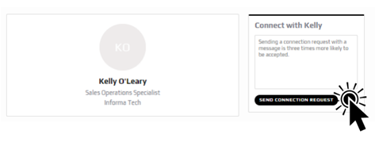
• Click on their name to view their profile or click on the person icon with the plus sign
• Craft a personal message to person and send connection request
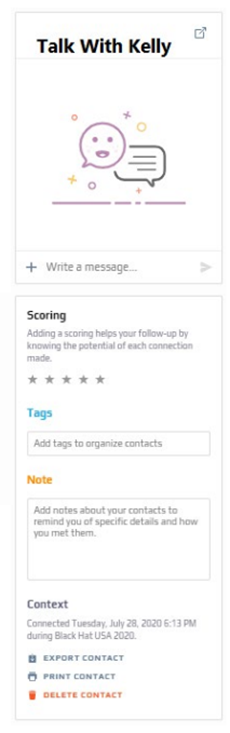
• Once you’ve made a connection, you can chat directly with the contact and, score, tag and make notes about the contact
Event Home Page
HOW TO | REQUEST A MEETING ON THE PLATFORM
• From main navigation, click on “Attendees”
• Sort and filter attendees to find contacts you’d like to connect with
• Click on their name to view their profile
• Click on an available meeting slot
• Select meeting location
• Craft a personal message to person and send
• NOTE: The meeting time slot is held and blocked until its accepted or declined
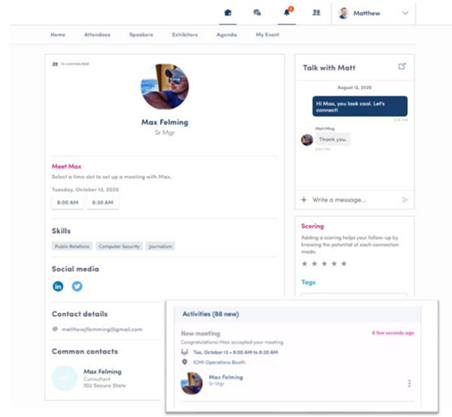
Holding meetings within the app
HOW TO | START A VIDEO MEETING
• From main navigation, click on “My Agenda”
• If your meeting request is confirmed, a button “Meeting Call” will appear 1 hour before your meeting
• Click on Meeting Call to start your video meeting
• Note: Incoming meeting requests will appear in your notifications area on the toolbar
• Virtual backgrounds are not available within Swapcard for video.
• Invite others into the conversation by clicking on the 3 dots and clicking “invite someone”.
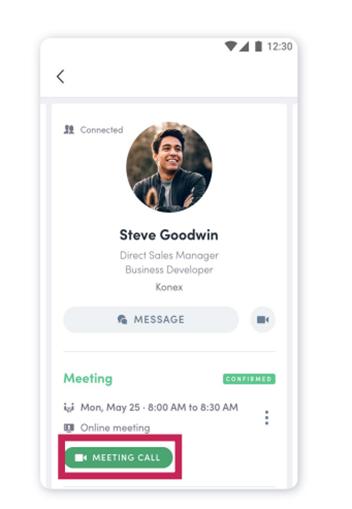
Pro Tip – You can also start a video call during a private chat conversation you’re having with a contact; simply click on the camera button to start the video call. Note you may share your screen during a video meeting as well.
Meeting Availability
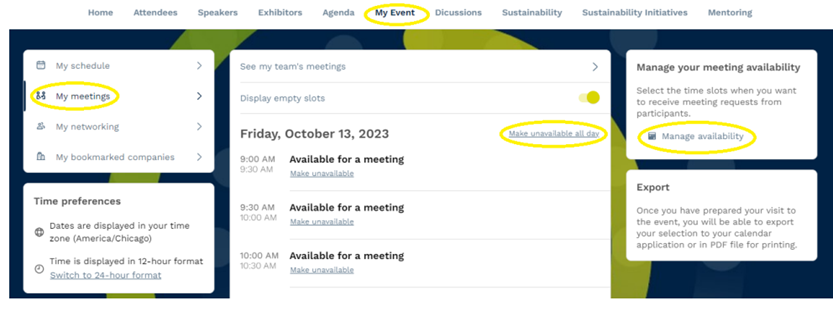
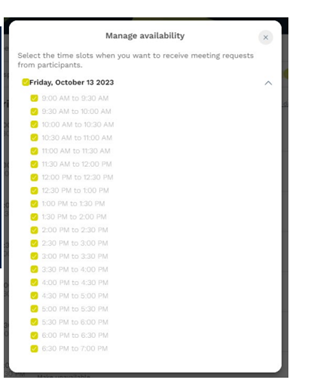
HOW TO | SET AVAILABLE MEETING TIMES; INDIVIDUAL
• *Note: this is how to set available meeting times as an “individual”, not for your digital company profile page.
• From main navigation go to the My Events
• Click on My Meetings then Manage Availability
• Time slots are pre-populated
• Check the box to make yourself available and uncheck the box to make yourself unavailable.
• If you’d like to block the entire day, uncheck the box next to the full date.
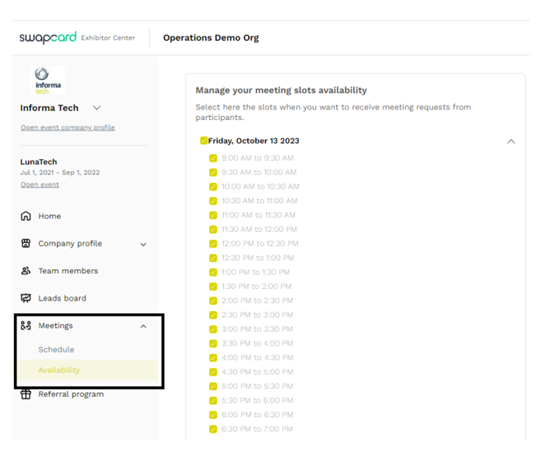
HOW TO | SET AVAILABLE MEETING TIMES; BOOTH PAGE
• *Note: this is how to set available meeting times for your “booth”, not for your individual meetings.
• From main navigation go to the Exhibitor Center
• Click on Meetings then Availability
• Time slots are pre-populated
• Check the box to make your booth location available and uncheck the box to make booth location unavailable.
• If you’d like to block the entire day, uncheck the box next to the full date.
My Profile
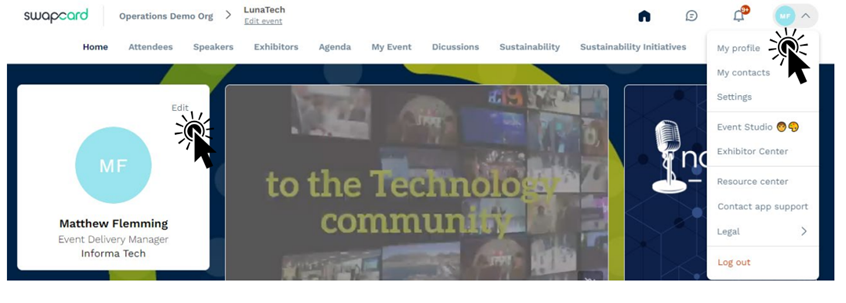
HOW TO | Get to your profile
• An attendee is more likely to accept your meeting invite if they can learn more about you.
• There are two ways for you to access your profile as a “Team Member”
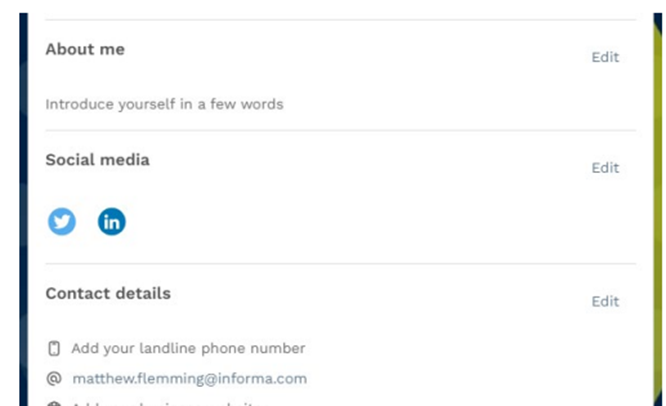
HOW TO | Update your Profile Information
Information you can edit on your profile. Note that contact information is only shared if you connect with an attendee, or your badge is scanned.
• Personal information
• Biography
• Social Media
• Contact details • Profile picture
• Square images (1:1 ratio), size of 200x200px and no larger than 1MB
• And more depending on your event
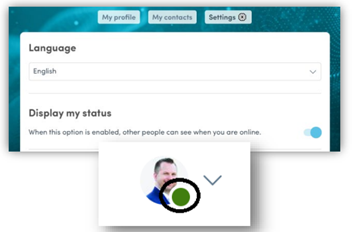
Display My Status:
• Turn this on to have the indicator show when you are logged in to the event and ready to network.
Was this article helpful?
That’s Great!
Thank you for your feedback
Sorry! We couldn't be helpful
Thank you for your feedback
Feedback sent
We appreciate your effort and will try to fix the article